Social Media

Real Estate Email Marketing Reports
What do all of those terms in my email marketing reports mean?

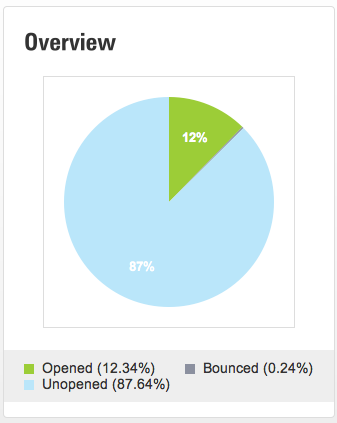
Opened – The number of unique people that opened an email at least once.  Even though they may have opened the email more than once they are still only counted once.
Unopened – The number of emails that were not opened.

Bounce – An email that was unable to be delivered because of an issue with the email address. i.e. bad email address, miss- spelled name, domain is expired etc…

Delivered – The number of emails that were delivered.

Total Opens – The total number of times the email has been viewed.  Each time the subscriber opens the email is counted.

Clicks – The total number of times a link in the email has been clicked.

Unique Clicks – The number of times links in the email have been clicked.  If a subscriber clicked on a link more than once it is only counted once.

Forwards – The total number of times that the email was forwarded using the “Forward” feature link in the email.

Opt Outs – The number of people that opted out/unsubscribed from your list using a the link in this campaign.

Feel free to contact us if we missed any terms.

Tagged , , ,

Facebook Real Estate Integration

FacebookWe just updated the way that Digital Home Info integrates with Facebook. The changes include:

  • Easier set up of “Listing of the Day” status updates
  • Publish “Listing of the Day” to multiple Facebook Pages
  • Install “My Listings” tab on multiple Facebook Pages

 Here’s how to setup the “Listing of the Day” feature.  (You must do this to before you setup a “My Listings” tab.)

  1. Click on the “Account Info” tab in the Dashboard.
  2. Select the “Social Media Settings” tab on the Account Info page.
  3. Click on the “Click here to authorize Digital Home Info access to your Facebook account” link.
  4. Click on the “Login to Facebook” link.
  5. Click on the “Allow” button on the “Request for Permission” page.
  6. Check the box next to each Facebook page that you want to push the “Listing of the Day” to and press the “Save” button at the bottom of the screen.
  7. When the page refreshes the Facebook pages you selected will be listed with checkboxes for each day of the week next to them.  Select the desired days and press the “Save” button next to the Facebook page.

To setup the “My Listings” tab:

  1. Goto http://www.facebook.com/apps/application.php?id=258943535455
  2. In the bottom left section of the page you will find an “Add to My Page” link. Click on it.
  3. Select the page that you want to add this application to and press the “Add to Page”.
  4. At this point the application has been added to your page. You may add it to as many pages as you like as long as the page is authorized above.
Please feel free to contact us if you have any questions or need assistance in setting up your account.

Tagged , , ,

6 Ways to Measure Your Social Media Results

Tagged ,

Infographic: How to Grow Your Twitter Following | Marketing Technology Blog

Tagged , , , ,

Twitter Real Estate Marketing with Digital Home Info

Below is an instructional video on how to integrate Twitter and Digital Home Info.  This video will show you how to authorize Digital Home Info to access your Twitter account and select days of the week to automatically post a real estate listing of the day. If you can’t see the video above you can view it here: Twitter Real Estate Marketing
Tagged , , ,

Integrating Facebook Fanpages with Digital Home Info’s Real Estate Marketing System

This video is a quick instructional video on how to Integrate Digital Home Info’s Real Estate Marketing service with a Facebook Fanpage (Facebook Marketing for REALTORS(C)). If you can’t see the video above, you can view it here: Integrating Facebook Fanpages with Real Estate Marketing The first video in the Setting up Facebook for Real Estate Series is located here. http://www.digitalhomeinfo.com/knowledge-base/integrating-facebook-and-digital-home-infos-real-estate-marketing-system/
Tagged , , ,

Integrating Facebook and Digital Home Info’s Real Estate Marketing System

The video below is an instructional step by step walk through of how to integrate Digital Home Info’s Real Estate Marketing system with a Facebook personal profile. If you are interested in integrating Digital Home Info’s Real Estate Marketing system with a Facebook Fanpage, click here. If you can’t see the video above, you can watch it at this link Integrating Facebook with Digital Home Info’s Real Estate Marketing System
Tagged , , ,

Unbranded Virtual Tours

Many of our customers know that we are constantly releasing improvements to our Digital Home Info Real Estate Marketing system. Today we are releasing our latest enhancement to the service, Unbranded Virtual Tours. Every listing now has an unbranded virtual tour link that can be found in the Digital Home Info dashboard. The link is under the Social Media sharing icons in the Active Listings section.

This link can be clicked on to view your unbranded virtual tour and copied to other systems requiring unbranded virtual tour links. Check it out and let us know what you think. We are always looking for great feedback and ways to improve our product.
Tagged , , , , , , ,