Posts Tagged ‘ virtual tour ’


5 Features of a Great Real Estate Virtual Tour

May 24, 2010 | Posted by Adam Small | 2 Comments

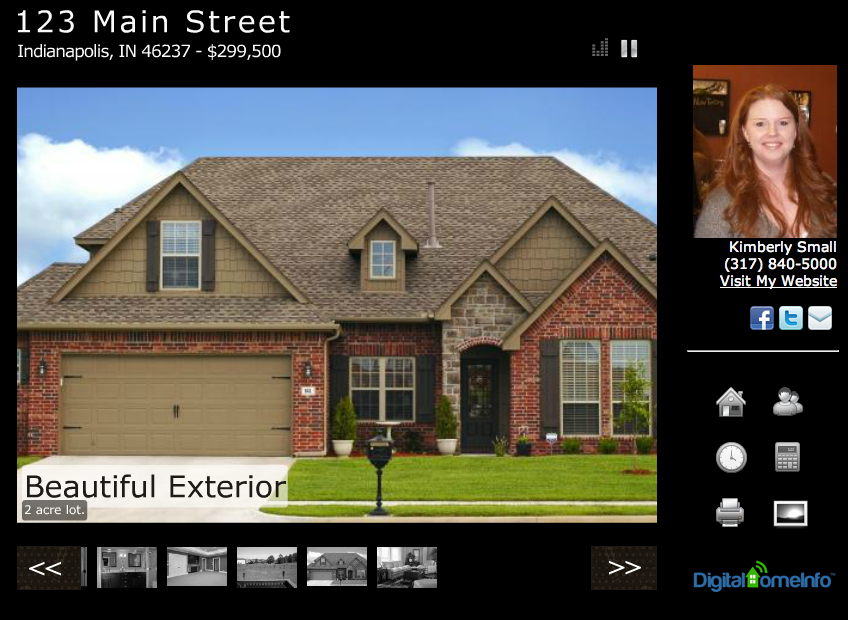
Virtual Tours have become such an integral component of Real Estate Marketing, we thought we would provide a top 5 list of features to look for in your Virtual Tour Service provider and why they are important.

  1. Large Photos – Large photos allow viewers to get a better feel for the size and feel of a home.  Small photos, even very good ones, make it hard to see details and look for features a viewer wants.
  2. Share Features – There should be a number of sharing features on a virtual tour.  Viewers should be able to share with their friends and use social media sharing links.  This helps spread your message and information out as far and wide as possible.
  3. Appointment Scheduler – Allows the viewers to schedule an appointment to see the property.  This is a great way to collect prospect information in an indirect manner while providing an easy path for the viewer to meet you.
  4. Contact Me/Information - All of your contact information should be visible on the virtual tour at all times and there should be a contact form that the viewer can fill out to reach you.  An interested buyer is not going to hunt through a number of links to find your information.  They will find another agent if your information isn’t easily accessible.
  5. Agent Branding – Every agent has a brand.  They work for an broker, agency, or real estate company.  Each one has a unique brand.  Utilize this brand and piggy back your own branding on top of it.  The more consistent your message and branding the greater opportunity for recognition.

You may have noticed that most of these features are about using media to either get direct contact with a viewer or to share your information with someone the viewer knows.  You don’t know where your next buyer is going to come from and utilizing every opportunity to spread your message as far and wide as possible just makes sense.

  • Share/Bookmark
Tags: , ,

3 Ways REALTORS can use Text Messaging

May 4, 2010 | Posted by Adam Small | 1 Comment

Text Messaging is an emerging technology in the Real Estate industry.  REALTORS are using it in many different ways.  We thought we would list 3 ways that REALTORS could use texting to generate leads.

  1. Mobile Flyers – Many mobile services (like Digital Home Info) offer a mobile real estate flyer that returns the property and agent information in a text message.  Many of them also offer an instant notification that provides the lead information to the agent.
  2. Mobile Virtual Tours - If your virtual tours are mobile optimized include a link to the mobile version at the bottom of mobile flyers and messages that you send to prospects.
  3. Text Card – A text message business card.  Puts your information on a prospects phone and provides you with their lead information at the same time.

These are just a few of the many ways that text messaging can be used by REALTORS.  Let us know how you are using text messaging by leaving a comment.

  • Share/Bookmark
Tags: , , , , , , ,

Since we just rolled out our new REALTOR.com® enhancement, we thought it would be a good idea to explain some of the benefits of posting your virtual tour links to REALTOR.com®.  Aside from the ~90,000,000 page views/month that REALTOR.com® receives, some of the benefits include:

  • Your complete Virtual Tour is linked to your listing on REALTOR.com® – This allows potential buyers to see all of your photos, your contact information, flyers and relevant information.  While at the same time distinguishing you from others that don’t link to their virtual tours.
  • Greater Distribution – Your listing link is displayed not only on REALTOR.com® but also on the entire REALTOR.com® distribution network which includes many national real estate portals such as homes.com, move.com, and national franchise brand sites such as ColdwellBanker.com, Century21.com, ERA.com, and REMAX.com.
  • Better Search Results – The volume of links generated through the REALTOR.com® distribution channel increases the chance of your home being found when potential buyers are searching the Internet.  All of these links connect back to your virtual tour leading potential buyers directly to you.

The list above is a small portion of the many benefits and marketing opportunities that Realtor.com provides.  If you are interested in learning more we recommend that you check out their site at realtor.com.

The REALTOR.com® logo is a registered trademark of the National Association of REALTORS®

  • Share/Bookmark
Tags: , , , , ,

New Feature – REALTOR.COM Virtual Tour Link Posting

April 30, 2010 | Posted by Adam Small | 1 Comment

Digital Home Info is excited to announce that we are now capable of posting Virtual Tour Links to REALTOR.COM.  This has been an often requested feature and we are pleased to make it available to our customers.

To use this feature simply click on the “Realtor.com” link in the Active Listings section of the management portal and follow the directions presented.

If you have any questions please feel free to call or email us.

  • Share/Bookmark
Tags: , , , , ,

Real Estate Marketing Tip Track Your Results!

April 20, 2010 | Posted by Adam Small | No Comments

Result tracking seems like an obvious thing.  Everyone should know to do it but many don’t.  I meet a lot of REALTORS and many of them can’t say how many leads they are getting from Virtual Tours, Print ads, or other efforts.  They are just spending to market and hoping that something brings in leads.

Depending on the medium there are a number of ways to track lead sources.

  • Google Analytics (Web Site)
  • Email Open/Click Analytics (Email)
  • Some marketing systems (like Digital Home Info) have built in analytics

By tracking where your leads are coming from you will be able to identify what is working and what isn’t.  You’ll also be able to determine where to increase your spending and where to cut back.

  • Share/Bookmark
Tags: , , ,

Custom Virtual Tour Flyers

April 17, 2010 | Posted by Adam Small | No Comments

Digital Home Info announces another enhancement to it’s Real Estate Marketing system. All of our customers now have the ability to upload a custom flyer for each listing.

We have added an “Add Custom Virtual Tour Flyer” section in the bottom left column of the Listing Editor. Simply choose the file you want to upload and press the “Save Flyer” button. You can change or remove the custom flyer at anytime.

If you choose not to upload a custom flyer we will still provide the default auto-generated pdf with every listing.

Let us know what you think!

  • Share/Bookmark
Tags: , , , ,

Unbranded Virtual Tours

April 16, 2010 | Posted by Adam Small | No Comments

Many of our customers know that we are constantly releasing improvements to our Digital Home Info Real Estate Marketing system. Today we are releasing our latest enhancement to the service, Unbranded Virtual Tours. Every listing now has an unbranded virtual tour link that can be found in the Digital Home Info dashboard. The link is under the Social Media sharing icons in the Active Listings section.

This link can be clicked on to view your unbranded virtual tour and copied to other systems requiring unbranded virtual tour links.

Check it out and let us know what you think. We are always looking for great feedback and ways to improve our product.

  • Share/Bookmark
Tags: , , , , , , ,

Real Estate Virtual Tour Photo Order

March 23, 2010 | Posted by Adam Small | No Comments

Based on feedback from some of our customers we have changed the initial ordering of uploaded photos. All photos are now uploaded with a default position of 1 instead of 0. This means that you only have to change the order of one photo to get the front of the home to be first in the virtual tours and syndication. Simply change your picture you want to be first from 1 to 0 and the rest of the photos will follow in random order. Want to set the exact order of all of your photos? Number them (beginning with 0) in the order you would like them to be seen. This change will not impact any photos already uploaded.

  • Share/Bookmark
Tags: , , , , ,

Real Estate Mobile Virtual Tour

March 20, 2010 | Posted by Adam Small | No Comments

We have recently changed the mobile virtual tour so that all home photos download at once when the link is accessed. This eliminates the potential buyer having to hit next to see additional photos.

The image to the right is an example of what our Real Estate Mobile Virtual Tour looks like.

To see a demo of what your listing’s mobile virtual tours looks like goto http://www.digitalhomeinfo.com /[propertycode] from your mobile phone or visit http://www.digitalhomeinfo.com /mdemo.php?id=[propertycode] from your pc.

(Replace [propertycode] with the numeric portion of your property code.)

  • Share/Bookmark
Tags: , , , ,

This video walks you through the basic steps of setting up a new listing in the Digital Home Info Real Estate Marketing system.

If you don’t see the video here you can view on YouTube.com at Digital Home Info How To Set up a New Listing

Step by step guide to setting up a new listing in the Digital Home Info Real Estate Marketing System.

  1. Make sure that you are logged in to the Digital Home Info Portal and that you are on the “Dashboard” tab.
  2. Under the Add New Listing section of the Dashboard select the desired property code from the dropdown box.  If the desired code is not in the dropdown box that means that it is assigned to an active property and you must deactivate the active code by clicking on the “Deactivate” link.  Once this is done the desired code should be available in the dropdown box.
  3. Press the “Submit” button.
  4. This brings you to a property information form.  At this point we need to fill in the relevant information on the property.  The more fields you fill in the better. You can copy and paste text into the text boxes.
  5. Once you have filled in all of the desired fields press the “Save Listing and on to Step 2″ button.
  6. This brings us to the upload pictures screen.  If you don’t have any photos of the property just yet you can click on the “Skip this Step” link at the bottom right of the form.  Otherwise click on the browse button to select photos. Multiple photos may be selected at one time.  Although there is no limit to the number of photos you may upload you can upload no more than 15 megabytes of photos at once.
  7. Once you photos are selected press the “Save Files” button at the bottom left of the form.
  8. The files will upload and once all the files are uploaded the screen will move to the “This listing has been assigned page”  At this point the text message, toll free and virtual tour are all completely set up.  You can visit the virtual tour, text in the property code or call the toll free number and get the appropriate responses and notifications.
  9. If you desire you can actually edit the advanced features of the listing by clicking on the “Edit this Listing” link.  Check back on the blog and in the Resources tab for tutorials on the individual features.

If you have any questions please feel free to contact support at digitalhomeinfo.com

  • Share/Bookmark
Tags: , , , , , ,